
DocBook Filters - Read and write docbook xml using OpenOffice.org
The project goal is to explore the possibility of using OpenOffice.org as a WYSIWYG editor of XML content. The principle is to edit structured documents using styles. These styles are then transformed to XML tags on export.
Anyone from community is welcome to join the project. The current issues and enhancements filed for DocBook are these.
This page shows how to enable and use the DocBook filters. It also shows the location of the stylesheets so that users can download and use the latest transformations. The filter provided on this page is based on earlier releases of the DocBook filter. New features include:
- Support for nested tags
- Support for unresolved entities
- Increased range of supported DocBook tags (index, xref, id attributes for sect etc.)
- Use of new Tools -> XML Filter Settings dialog in OpenOffice.org
Enabling the DocBook XSLT's in OpenOffice.org
For these releases there are three different ways of enabling the DocBook filters.
1. Download the DocBook XSLT Stylesheets and OpenOffice.org Style Template
This method ensures that the most recent stylesheets and OpenOffice.org style template are used for import and export. To import, export and modify DocBook documents in OpenOffice.org, it is necessary to download the following:
- The relevant XSLT stylesheets for the XML transformations (All available here)
- An OpenOffice.org style template that contains custom styles corresponding to DocBook tags (Available here)
| Article | Chapter |
|---|---|
| docbooktosoffheadings.xsl | docbooktosoffheadings.xsl |
| Article | Chapter |
|---|---|
| sofftodocbookheadings_article.xsl | sofftodocbookheadings_chapter.xsl |
OpenOffice.org Template required for Article and Chapter documents:
Creating a new DocBook filter
- Go to Tools -> XML Filter Settings...
- Set Filter Name and Name of File Type to DocBook (Chapter)
- Go to the Transformation tab
- Set DocType to <chapter>
- For XSLT for Export browse to the chapter export stylesheet (sofftodocbookheadings_chapter.xsl).
- For XSLT for Import browse to the chapter import stylesheet (docbooktosoffheadings.xsl).
- For Template for Import browse to the style template (DocBookTemplate.stw).
- Click OK and close the XSLT Filter Setting dialog
To create a DocBook Article filter, the above steps can be repeated with article replacing chapter
2. Download the DocBook XSLT Jar Packages for Article or Chapter
This method of enabling the DocBook filters is more convenient, but it does not guarantee that the most recent stylesheets and OpenOffice.org template are used. TBD
3. Download the DocBook UNO component for Article only
The DocBook UNO component adds filter support for the retention of unresolved XML entities.
- Download the DocBookFilter
- Unzip it to the <OOo install Dir>/
- Run pkgchk in the <OOo install Dir>/program dir
- The DocBook Article filter will now import DocBook unresolved entities as OpenOffice.org set variables
How to Import a DocBook document
A DocBook article or chapter document can now be opened using the File -> Open dialog.
- Go to File -> Open...
- Browse to the DocBook document.
- Click OK
Alternatively, it is possible to browse manually to the desired DocBook filter in the File Type combo-box in the File -> Open dialog.
How to Export a DocBook document
The DocBook document can also be exported using the File -> Save As dialog.
- Go to File -> Save As...
- Browse to the location where the document is to be saved
- Click Save
Alternatively, it is possible to browse manually to the desired DocBook filter in the File Type combo-box in the File -> Save As dialog.
Using OpenOffice.org Headings and Styles for different DocBook tags
Using OpenOffice.org styles to represent DocBook tags
The style template supplies all of the custom styles that are currently supported. Once a DocBook document has been imported to OpenOffice.org, the available DocBook specific styles can be viewed using the Stylist.
On import, each of the supported DocBook tags will be mapped to formatted OpenOffice.org content. Similarly, to modify the imported DocBook document, OpenOffice.org text styles can be used to represent the DocBook tags marking-up the text.
NOTE: A new DocBook document can be created in OpenOffice.org by opening the DocBookTemplate.stw. The document can then be saved as a DocBook document, and the new content will be represented as DocBook mark-up.
How to create new DocBook content:
- Press F11 to display the Stylist
- Select Custom Styles in the Stylist combo-box
- Click the Character Styles icon (second from left on the Stylist)
- Double-click the SubScript style
- Enter text in the OpenOffice.org document
- On exporting as DocBook, the text formatted as the SubScript custom style will be marked-up with the DocBook tag <subscript>
How to create DocBook sections:
Initially the DocBook project used OpenOffice.org sections to enforce the nesting of DocBook sections.
Feedback has shown that authors wish to use the common word processing styles such as Heading1, Heading2, etc. The following instructions describe how to create a <sect1> that contains a <sect2>
- Press F11 to display the Stylist
- Select All Styles in the Stylist combo-box
- Click the Paragraph Styles icon (first in the left on the Stylist)
- Double-click the Heading 1 style
- Enter the text to be the <sect1> title
- All the text below this heading will now be the content of the DocBook <sect1>
- Enter other DocBook styles, tables, etc.
- Enter other DocBook styles, tables, etc. to be included in <sect1>
- Double-click the Heading 2 style
- Enter the text to be the <sect2> title
- All the text below this heading will now be the content of the DocBook <sect2>
- Enter other DocBook styles, tables, etc. to be included in <sect2>
- This nesting of DocBook sect's using OpenOffice headings can go as far as <sect4> / Heading 4
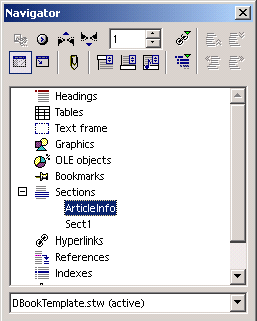 Navigating through the document:
If you wish to see how DocBook sections are nested as OpenOffice.org headings, use the F5 key to Display the Navigator window. Expand the headings tag, to display the layout of the headings within the document. You can skip to the start of a given DocBook section/OpenOffice.org heading, by double-clicking on it.
For further information on supported DocBook tags see: Supported Tags
